How to send as each brand: what works, what does not
Where a message comes from depends on how it is sent. These are the real ways to send per brand, which ones Claude can automate, and which login each one needs.
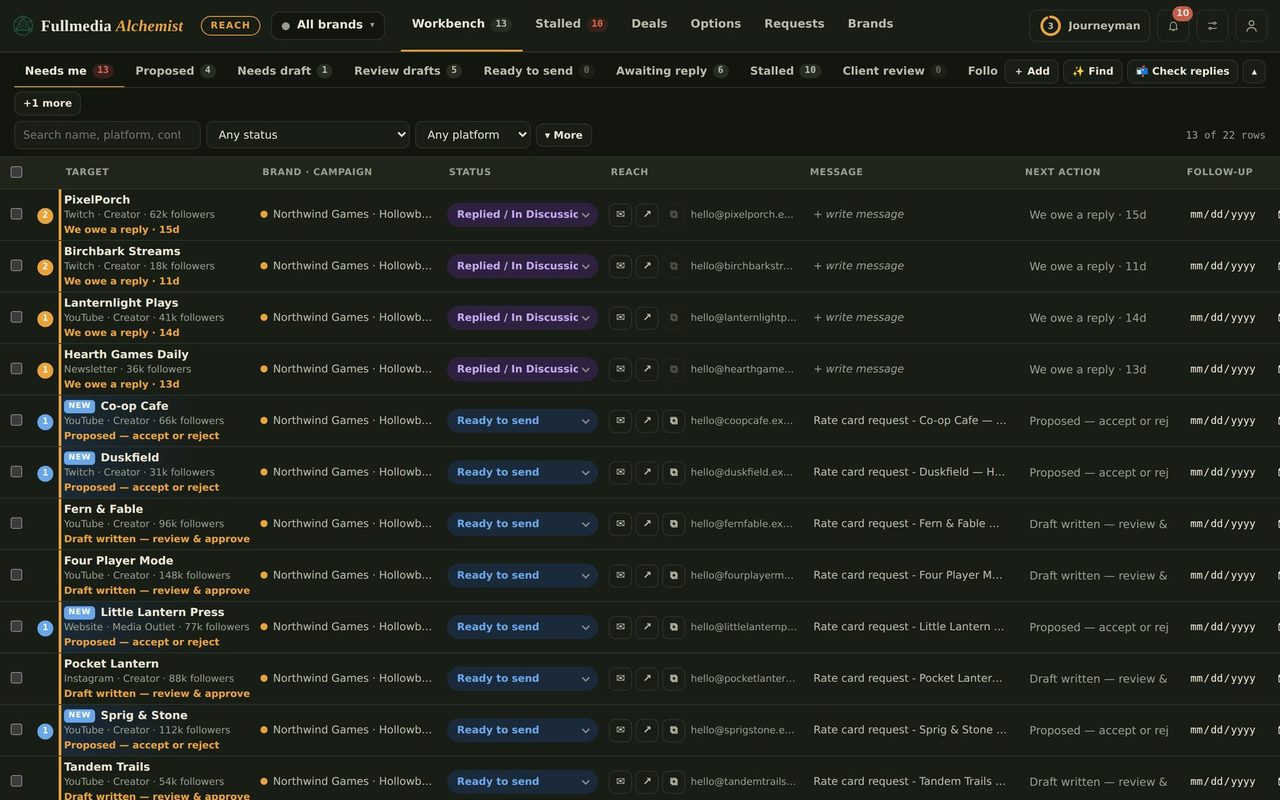
When you send from Gmail yourself, you choose the From address. When Claude sends for you through its Gmail connection, it does not: the message leaves from the Google account that connection is signed in to. So "send as each brand" comes down to one question: which account is connected? These are the ways that work, and the one that does not.
 What does not work
Automated sending as an alias. An alias (hello@yourbrand.com added to your own mailbox) can only be chosen in Gmail's From box, and Claude's Gmail connection has no From box. Reach cannot change that. If you were told otherwise, including by an earlier version of our guides, that was wrong.
The four ways
- One mailbox per brand, automated. Each brand has its own Google account, for example a Workspace user hello@brand.com. In Reach, open Automation, Right accounts, enter that address for the brand, and tick that Claude's Gmail is signed in as it. Claude then sends the brand's mail from the brand's own address. Use this when brand identity matters.
- Aliases, sent by hand. Add the alias, open the draft in Gmail from Reach, and pick the brand in From. One login, any number of brands, nothing automated. Good for a few high-value messages and for replies.
- One mailbox for every brand, automated. Everything comes from one address. Put the brand name in the first line and in the signature. Fine for a trial or a small sender, weaker for brand identity.
- A browser assistant picks From in Gmail. An assistant that uses your own Chrome can open Gmail, choose From and send. It is slow, it is not part of Reach's send queue, and we have not tested it at volume. Treat it as a workaround, not a plan.
Do you have to log in to each one?
For automation, yes, in one sense. Claude's Gmail connection is signed in to one account, so a brand with its own mailbox needs that mailbox connected while its mail goes out. Run one brand, switch the connection, run the next. Reach will not send for a brand until you tick that its account is the one signed in, and Claude checks the account before the first send and stops if it is wrong. For hand-sending with aliases you only need your one login.
You do not need a Reach workspace per brand. One workspace holds every brand. Only the sending mailbox is per brand.
Try it on your own brandOne brand is free, with no card. Start free.
Setting up one mailbox per brand
- Create the brand's mailbox. On Google Workspace that is a user on the brand's domain (add the domain as a secondary domain, which costs a seat). A free Gmail account also works, but its address is a gmail.com address and its limits are lower.
- Authenticate the domain: SPF, DKIM and DMARC (step 5 of the alias guide).
- In Reach open the brand, then Brand, Sender & signature, and set Sending email to that mailbox.
- Open Automation, tick the brand, and under Right accounts, A different mail account for a brand, enter the address.
- Connect that mailbox in Claude's Gmail connection, then tick "Claude's Gmail is signed in as this exact address" for the brand.
- Start with a low daily cap and read sending limits before raising it.
Which to pick
Agencies with several clients: one mailbox per client. It costs a seat each and one connection switch per run, and every client's mail shows its own address and keeps its own sending reputation. Solo senders with a few brands: one mailbox, the brand in the first line and signature, and aliases for the messages you send by hand.
If Claude's Gmail connection gains a From option, this guide will say so and Reach will use it.
Next: pick your email setup, connect Claude to Reach and Gmail, and run several brand mailboxes.
Send as the right brand.
Free plan available for one brand. No card.